Hard drives · Failing PCs · Lost files
Data recovery, done carefully.
A failing drive deserves one patient, careful read, not a dozen rushed ones.
Family photos, tax records, the business files you meant to back up. When a drive starts failing, I copy it read-only on my bench and recover your files from the copy, so the drive that's struggling gets worked as little as possible.
Warning signs
If your computer is doing any of this, stop using it.
The computer won't start, or gets stuck on the logo.
It freezes every time you open a certain folder.
Files that used to open now show errors or come up blank.
Everything has gotten painfully slow for no clear reason.
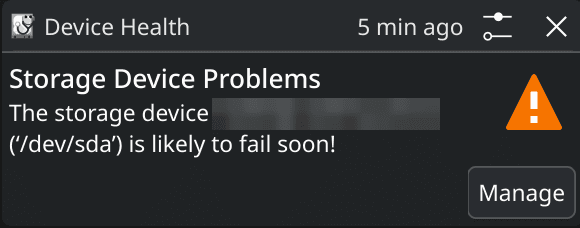
You see a warning that the drive is "likely to fail soon."
You hear clicking, grinding, or a buzz that wasn't there before.
Every hour a failing drive runs can cost you files. Shut it down, don't keep restarting it, and skip the free “repair” tools and Windows disk checks. Those can write to the drive and work it hard, which is the opposite of what it needs. Then call me.
The method
How I recover data, in five steps
If something can't wait, like the files you need this week, I can often save it on site first, then stop before the drive gets worse.
1
A read-only connection
The drive comes out of your computer and connects straight to my bench workstation. It never gets opened like a normal disk, and nothing is ever written to it. Your drive is only read, never changed.
2
The easy areas first
I copy the drive sector by sector with a tool called GNU ddrescue. The first pass grabs everything that reads cleanly and skips the trouble spots, so the healthy data is safe before the drive gets pushed.
3
Go straight for your files
If a worn drive slows to a crawl, copying every last sector could take more than a week. So I rebuild the drive's own file index and go after just the parts of the disk that hold your files: less time, and less wear on a drive that doesn't have much left.
4
Gentle retries
Then it goes back to the spots it skipped, one careful attempt at a time, with an automatic stop if the drive's health starts to slip. A worn drive often gives up more on a patient second try than it would if you kept hammering on it.
5
Check every file
Your files come off the copy, not the failing drive. Then every one gets a digital fingerprint and is opened the way its own program would open it: photos decoded, documents paged through, videos played start to finish. You know what came back whole before you ever get it.
Nothing behind a curtain
Follow your recovery as it happens.
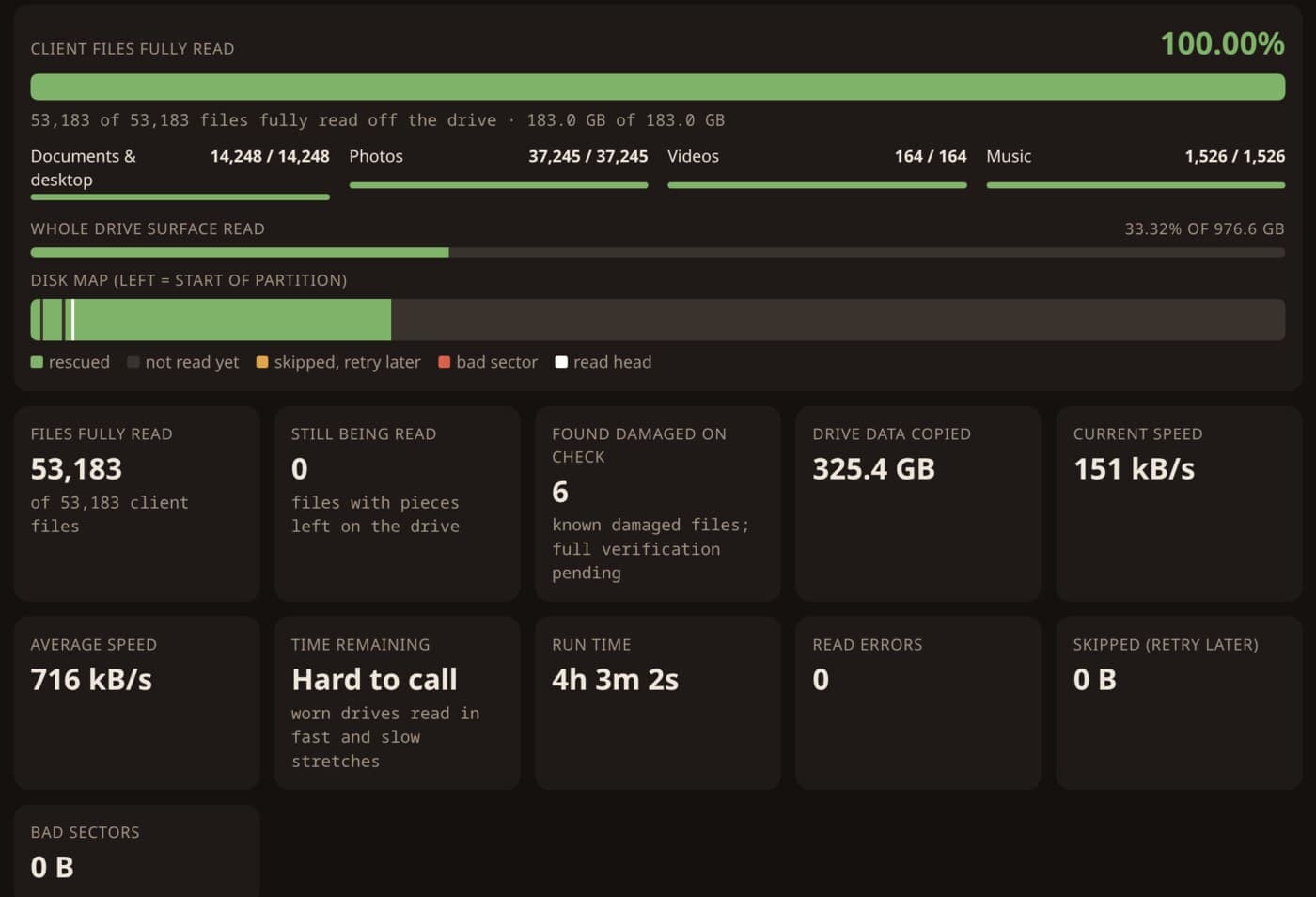
While your drive is on the bench, you get a private link to a live progress page: how much has been read, how many of your files are fully copied, read errors, and the drive's health. No names and no file names, so it's safe to share with family.
By the numbers
One recent recovery, from a worn-out 1 TB drive
The drive had been failing its own health checks. Here's how the job came out, straight from the logs.
53,000+
files recovered and fingerprint-checked
190 GB
delivered on a verified backup drive
99.4%
of files intact on the first careful copy
0
read errors in the first pass over every file
24,000+
worn spots the drive had already swapped for spares
6,400
damaged spots re-read slowly, one at a time
The honest part: the documents, records, email and family photos all came back complete. About a third of the home videos sat on the most worn part of the disk and came back partial, and the report listed each one by name with how much was recovered.
What you get
Your files, plus a written recovery report.
You won't be left guessing what happened to your drive. Along with whatever comes back, you get a short report in plain English:
- What the drive's own health readings said when it came in
- What was copied, and every file that isn't complete, by name, with how much came back
- A fingerprint list of every file, so you can confirm your copy any time
- Plain-English next steps, including backups so this is the last time
And a few promises
- Your original drive is only ever read, never written to.
- Files come back laid out in the same folders they were in on your computer.
- My working copy of your data is kept 30 days after you get your files, then deleted.
- Done with the old drive? I can physically destroy it and give you a written certificate.
Honest limits
I'll tell you straight what I can and can't do.
Clicking, grinding, or not spinning at all? That usually means a physical failure inside the drive. Those need a clean-room lab, and opening one anywhere else can ruin the chance of getting anything back. I'll tell you if that's where you are, and help you find a lab.
No one can honestly guarantee recovery. It depends on how worn the drive is and how much it was used after the trouble started. What I can promise is a careful process and a straight account of how it went.
Pricing
Billed at my standard hourly rate.
Same as every visit: a $30 service-call fee plus $75 per hour. No special data-recovery markup. See how my pricing works →
Drive acting up? Shut it down and call me.
Tell me what it's doing and what matters most on it. We'll sort out the safest next step before anything else gets lost.